
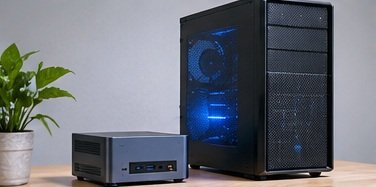
A mini PC can provide a complete desktop computing experience in a small enclosure, while a traditional tower offers more room for components and cooling. Choosing between them requires more than comparing processor names. Think about the space available, the applications you use, peripheral requirements and how long you expect to keep the machine.
Compare performance under real workloads
Many compact PCs use efficient processors and integrated graphics, which can be sufficient for office software, browsing, media playback and basic development. A tower may accommodate higher-power processors and dedicated graphics cards for demanding rendering or gaming. Some compact systems are also powerful, but their cooling design can limit sustained performance compared with a larger enclosure. Compare tests that reflect your tasks and measure performance over a realistic duration, not only short benchmark bursts.
Examine upgrade and repair options
A tower often has room for additional storage, memory and expansion cards, although proprietary designs may still restrict upgrades. Mini PCs differ considerably: some support replaceable RAM and SSDs, while others use soldered components or a single internal storage slot. Check the service documentation and warranty before buying. If the computer will be used for five years or more, the ability to replace storage or expand memory may be valuable. Also consider availability of replacement fans, power adapters and local repair services.
Consider desk space, noise and power
A mini PC can fit behind a compatible monitor or on a small shelf, leaving more space for work. Confirm ventilation clearance and access to ports before mounting it. A tower occupies more space but can sometimes operate quietly because larger cooling components need less fan speed for a given workload. Power consumption depends on components, configuration and activity rather than size alone. If energy use matters, compare measured idle and workload consumption and estimate usage hours. Do not confuse the power adapter's maximum rating with actual electricity consumption.
Check connectivity and peripherals
Count the monitors and USB devices you need. Verify video output capabilities, Ethernet speed, wireless networking and any required audio connectors. External drives and hubs can compensate for fewer internal expansion options, but they add cables and cost. A mini PC used for remote work may need a separate webcam, keyboard and display, just as a traditional tower does. Include those items when comparing complete systems. If you already own compatible peripherals, a compact system may be a convenient replacement.
Decide with a realistic ownership example
A home-office user needs two screens, a browser, email and occasional video calls. A supported mini PC with adequate memory and verified display connections may meet every requirement. A photographer with several large internal drives and a need for future graphics upgrades may prefer a tower. A small business purchasing several systems should also consider centralized support, warranty turnaround and whether a failed machine can be replaced quickly. The best form factor is the one that meets operational needs at an acceptable total cost.
Frequently asked questions
Can a mini PC run Windows normally? Yes, if its hardware meets the operating system requirements and the device includes a legitimate supported installation.
Are mini PCs always cheaper? No. Compare equivalent memory, storage, warranty and performance configurations.
Can I use a mini PC for gaming? Some models handle light gaming, while demanding games may need graphics capabilities that a particular compact system lacks.
Sources and further reading
https://support.microsoft.com/windows