


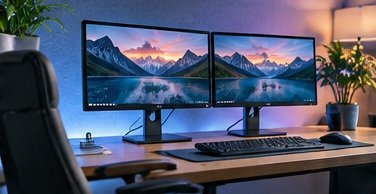
Two monitors can make it easier to compare documents, keep a reference visible during a call or work on a website while inspecting another page. The key is to configure the displays as an extended workspace and make sure the computer actually supports the desired resolution and refresh rate on both screens.
Check display and computer compatibility
Identify the video outputs on the desktop, laptop or docking station. HDMI and DisplayPort are common, but USB-C video depends on the port's supported features. Consult the computer and dock documentation for maximum external displays, resolution and refresh rate. Some laptops support fewer displays than the number of connectors suggests. A basic HDMI splitter normally duplicates one signal; it does not create two independent desktop outputs. Choose suitable cables and adapters and check that the monitors accept the corresponding inputs.
Connect and configure the displays
Place both monitors on stable stands, connect them to power and attach their video cables. Select the correct input on each monitor. In Windows 11, open Settings > System > Display. Use Identify to see the number of each detected screen. Select the option to extend the desktop rather than duplicate it. Drag the display rectangles to match the physical arrangement, then apply the change. Select the screen you want to use as your main display. The Windows+P shortcut offers quick access to common projection modes.
Adjust resolution, scaling and refresh rate
Select each display individually and use its recommended native resolution when available. Adjust scaling so text is readable from your normal working position. Different display sizes and pixel densities may need different scaling percentages. The Advanced display settings show available refresh rates, which depend on the monitor, graphics hardware and connection. If a desired mode is missing, verify that the cable and dock support it. Do not force an unsupported display mode. Test a window across both screens to ensure text and pointer movement behave as expected.
Arrange the desk around actual tasks
If one display holds your main work, center it in front of you and place the secondary display at a comfortable angle. If both are used equally, position their shared center near the middle of the desk. Keep frequently referenced content within easy view, avoid reflected glare and ensure that the keyboard and mouse can be used comfortably. A monitor arm may free space, but check the desk's strength and the monitor's mounting compatibility. Take breaks from prolonged static positioning.
Troubleshoot common display problems
If a screen is not detected, check its input selection, reconnect the cable and try a known-working compatible port. Restart the computer and install supported graphics or dock updates. If only one monitor works through a dock, consult its supported display configuration and the laptop's capabilities. When a screen looks blurry, review its native resolution and scaling. For intermittent black screens, test a simpler connection without optional adapters. Keep the original setup available until the new configuration is stable.
Frequently asked questions
Can two monitors have different sizes? Yes. Windows lets you configure resolution and scaling separately.
Can I use a laptop screen as a third display? It depends on the laptop and graphics configuration's maximum supported display count.
Do I need a docking station? Not if the computer has enough compatible video outputs and other required connections.
Sources and further reading
https://support.microsoft.com/windows

