


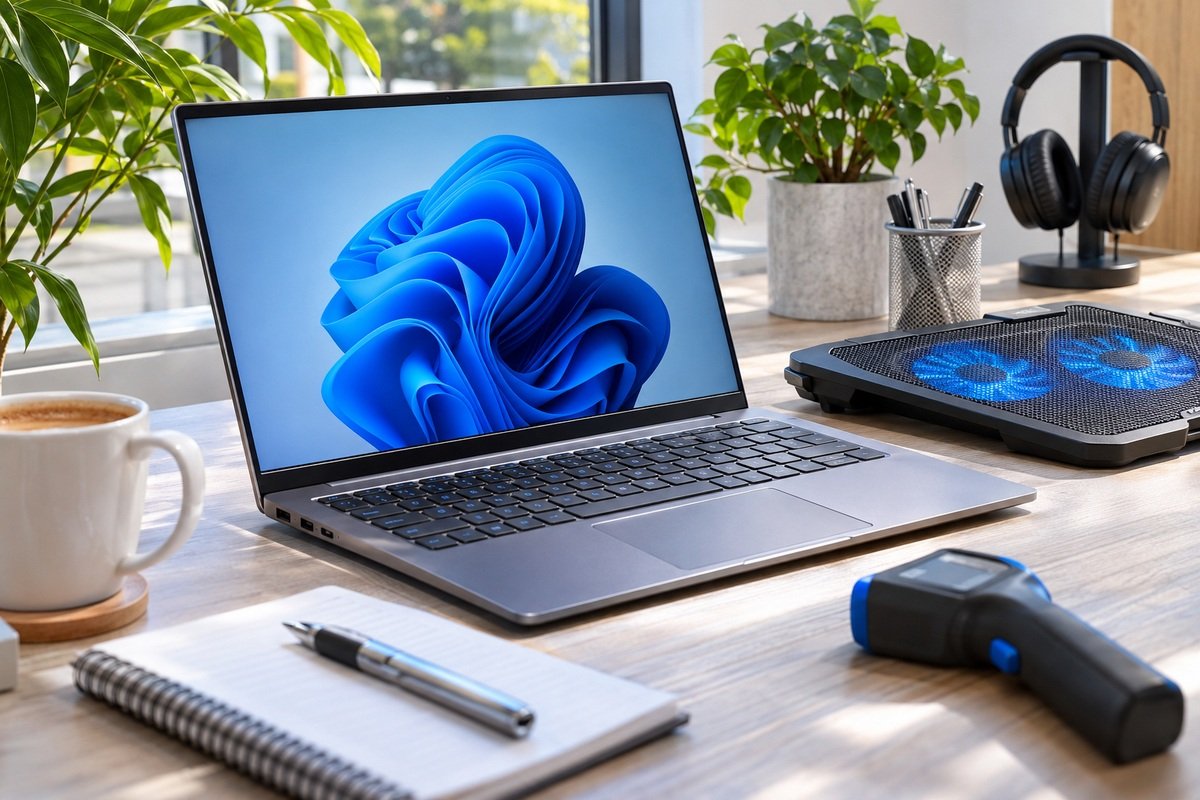
A laptop can become warm during gaming, video rendering or updates without being defective. A problem is more likely when it repeatedly loses performance, shuts down, produces unusual fan noise or becomes excessively hot during modest tasks. Temperature limits differ between models, so a single universal temperature threshold is not a reliable diagnosis.
Check the immediate surroundings
Move the laptop to a firm surface and ensure that its intake and exhaust openings are clear. Avoid blankets, cushions and enclosed drawers. Remove cases or covers that obstruct ventilation. Check whether the room is unusually warm or the laptop is exposed to direct sunlight. If a device emits a burning smell, has a swollen battery or shows damaged power connections, stop using it and arrange qualified service. Do not puncture, compress or attempt to cool a damaged battery with water or ice.
Determine whether software is creating the heat
Open Task Manager and sort processes by CPU and GPU usage while the laptop is warm. A video export or game may reasonably demand substantial resources. Unexpected sustained activity from an unused application deserves investigation. Allow legitimate updates to finish, close unnecessary programs and test again. Use a balanced power mode during routine work and compare noise and responsiveness. On some machines, manufacturer utilities offer cooling profiles. Avoid unverified undervolting tools or changes to firmware settings as a first-line remedy.
Inspect ventilation and fans
With the computer off, visually inspect external vents for dust. Follow the manufacturer's cleaning instructions. Do not insert objects into vents or use a cleaning method that may damage internal fans or components. A cooling stand can improve airflow in some designs, but it cannot repair a broken fan or blocked heatsink. If the fan rattles, fails to run when expected, or the device frequently shuts down under light use, a technician can inspect internal cooling components and thermal contact safely.
Compare temperatures and performance consistently
If the manufacturer offers hardware monitoring, compare its readings under a repeatable light workload and a normal demanding task. Observe both performance and fan behavior, because modern processors may reduce speed to stay within operating limits. Do not deliberately push a device that is already shutting down or showing damage. A change from quiet operation to repeated thermal shutdowns is more meaningful than comparing temperatures with an unrelated laptop model on the internet.
Decide whether repair or replacement is appropriate
Check warranty coverage before opening the machine. A fan replacement, cleaning or repair of the cooling assembly may be economically sensible for a laptop that otherwise meets your needs. For an older device with poor battery life, unsupported software and several hardware faults, compare the total cost of repairs with replacement. Back up files before handing the computer over for service, and ask about data access and privacy procedures.
Frequently asked questions
Do cooling pads always work? No. Effectiveness depends on how the laptop draws air and how the stand aligns with its vents.
Can a charger cause overheating? An incompatible or damaged charger can create problems. Use an approved, correctly rated replacement.
Should I replace thermal paste myself? Only if the manufacturer permits the procedure and you have the required skill; otherwise use professional service.

