


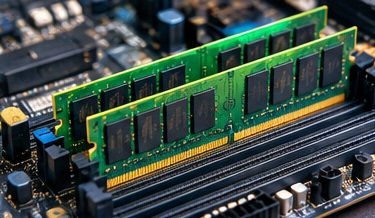
RAM is the workspace where a computer keeps information that active applications need quickly. When that workspace fills, the operating system may move some information to storage. This can make switching between programs feel slow. Buying more memory is useful when a workload actually needs it, but excess capacity does not make every task faster.
Establish your everyday workload
List the programs you normally use together, not just the heaviest program you own. A browser with many tabs, video conferencing, document editing and synchronization can place more demand on memory than each application alone. Open a representative workload and inspect Task Manager > Performance > Memory. Look at available memory and sustained pressure while switching between tasks. High utilization by itself is not proof of a problem because the operating system can use spare memory for caching. Repeated delays alongside low available memory and storage activity are more informative.
Practical capacity starting points
For light browsing, document editing and email, 8 GB can be workable if the workload is modest. A 16 GB configuration is a sensible starting point for many general-purpose computers and multitasking. Gaming, software development, larger spreadsheets and photo editing may benefit from 16–32 GB or more, depending on the specific applications. Large video projects, virtual machines, professional datasets and local AI workloads can require substantially more. These are planning ranges, not universal requirements. Consult the software publisher's recommended specifications and consider what must run simultaneously.
Why memory type and configuration matter
Laptop and desktop memory modules can use different physical formats. DDR generations are not interchangeable, and a motherboard supports specific memory types, speeds and capacities. Some laptops have soldered memory, which may make future upgrades impossible. Systems with multiple memory channels can benefit from supported matched configurations, particularly when integrated graphics share system memory. Do not assume a memory kit will operate at its advertised maximum speed in every motherboard; use the device manufacturer's compatibility documentation.
Balance RAM against other components
If applications launch slowly from a mechanical disk but memory remains available, an SSD may be the better upgrade. If a game is limited by its graphics processor, increasing memory beyond the game's needs may have little effect. Conversely, adding memory can reduce stuttering when the system is forced to page heavily. For laptops with non-upgradeable memory, consider the expected lifespan and future application needs at purchase. For upgradeable desktops, starting with a supported capacity and expanding later may be economical.
A practical buying example
A person runs email, a browser with dozens of tabs and video meetings while editing documents. On an 8 GB machine, switching between apps frequently causes pauses. If closing tabs immediately improves responsiveness and Task Manager confirms memory pressure, moving to 16 GB is a reasonable option if supported. A developer running several virtual machines should instead estimate memory assigned to each guest, leave headroom for the host operating system, and size the machine for the combined workload.
Frequently asked questions
Is more RAM always faster? No. Once the workload fits comfortably, the limiting factor may be CPU, graphics or storage.
Can I mix RAM modules? Sometimes, but compatibility and speed are not guaranteed. Follow the motherboard or laptop documentation.
Should I disable the page file? Normally leave Windows to manage it; disabling it can cause application failures when committed memory exceeds available capacity.

